495 546 095

Instructions and information on the Client Zone

The Client Zone is an e-shop solution used mainly for the purchase of public transport tickets in Hradec Králové. In addition to its main role, this separate website at dpmhk.qrbus.me offers a number of other useful functions for clients of the transport company.

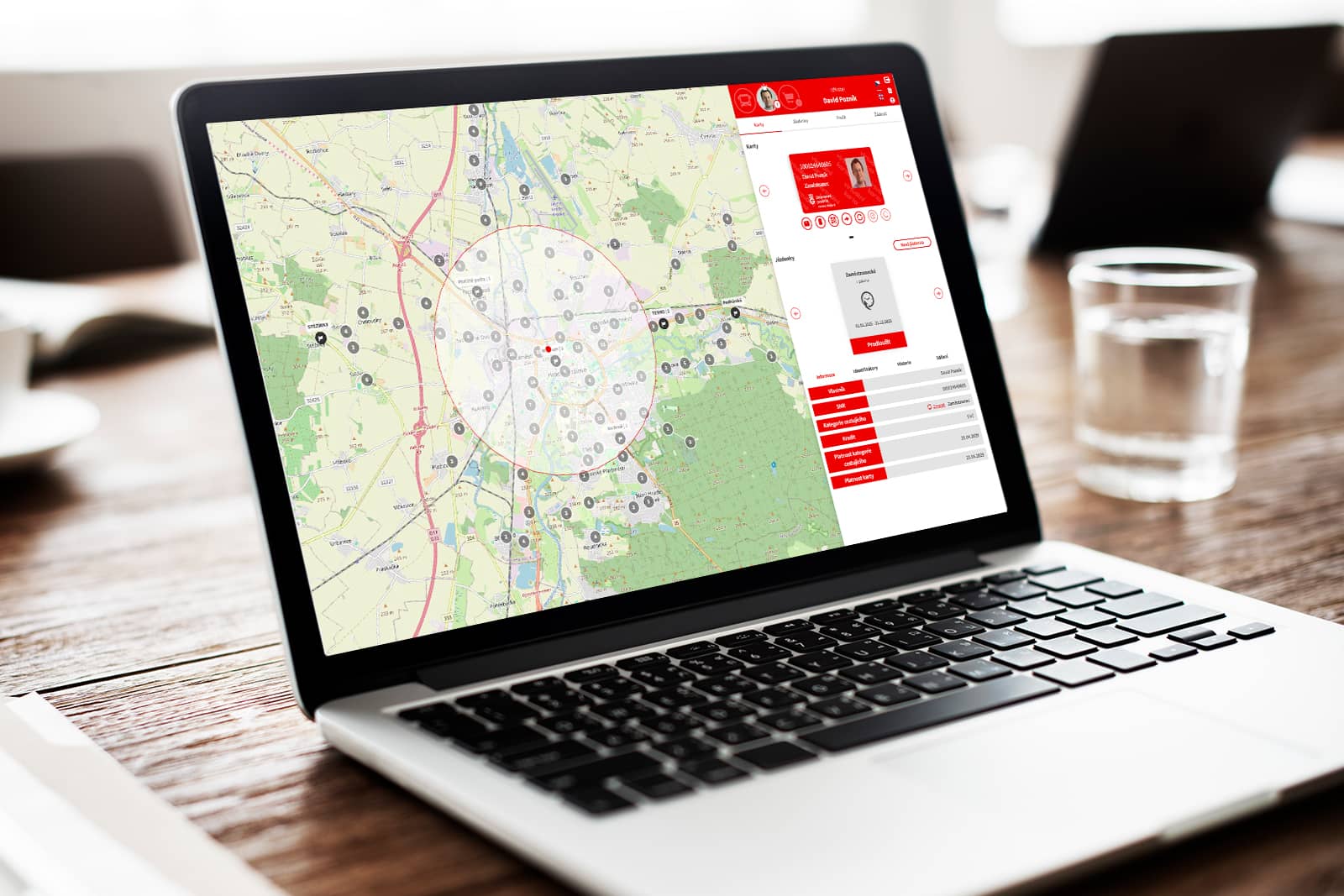
Laptop with the open page of the DPMHK Client Zone for the electronic purchase of tickets

Description of individual areas of the client zone application

Existing customer with a non-transferable City Card

Card with your photo

Procedure to transfer the content of the current City Card
to a virtual card and assigning the card as an identifier.

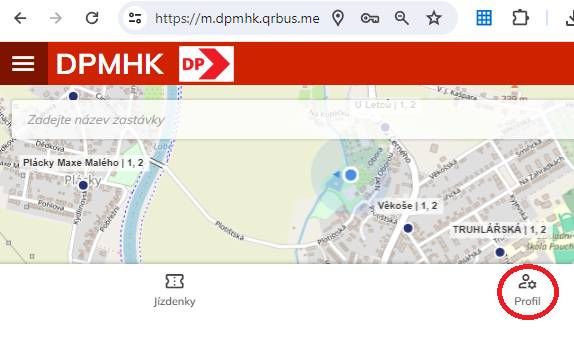
When you start from your mobile phone you will be redirected to the mobile version and here you will select „Profile“ and thenREGISTER“.

There are two ways to access registration in a web browser:

  • Via the button Client zone in the main menu of the site by selecting Access to the client area
  • In a web browser by entering the URL address: https://dpmhk.qrbus.me/
Screenshot of the dpmhk.qrbus.me website - Client Zone (e-shop), at the top is a red bar with the DP logo and the text DPMHK, below it is a map, and in the bottom right corner below the map, a button labeled "Profile" is circled in red.

Mandatory data are marked with an asterisk and on the right with a red stripe.

  • Enter your email and press the button Further
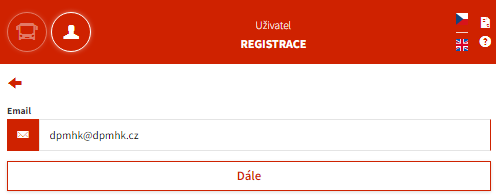
In the first step of a new registration, the user enters their email address (e.g., dpmhk@dpmhk.cz).
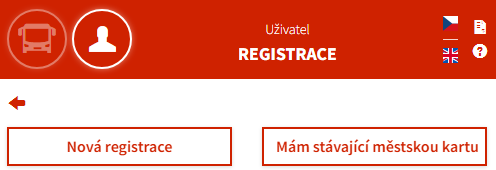
  • Select an item I have an existing City Card
The user starts on the main page, where they select the Profile section. Subsequently, they choose whether they want to perform a New registration or if they already have an existing city card.
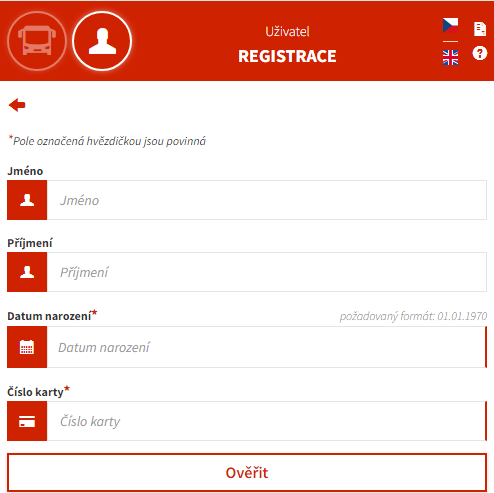
  • Fill in the details of the existing card and press the button Check
If the user already has a card, the system requires them to enter their first name, last name, date of birth, and card number to verify their identity.
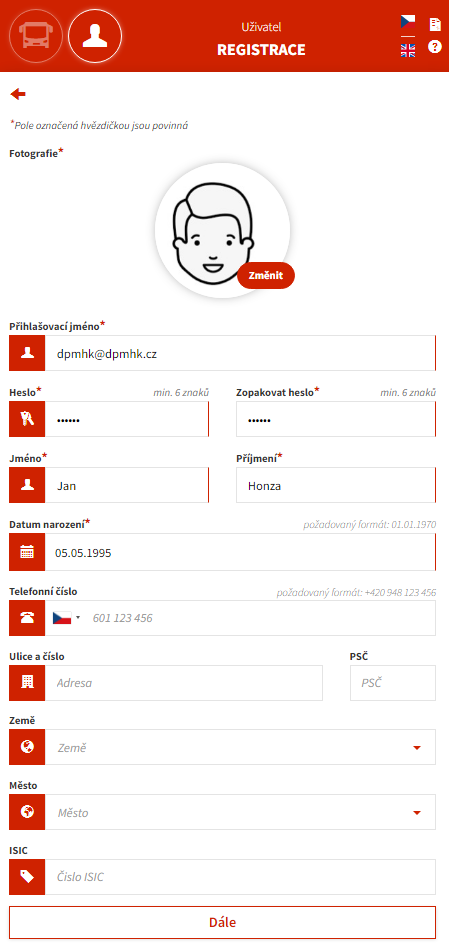
  • If the data matches, it will be transferred to the registration form for the new E-SHOP. You only need to insert your current photo (use the mouse wheel to adjust the size of the photo), check the transferred data, set the login name and password and confirm with the button Further
The form requires filling in first name, last name, password, date of birth, and phone number. It is also possible to upload a user photo.
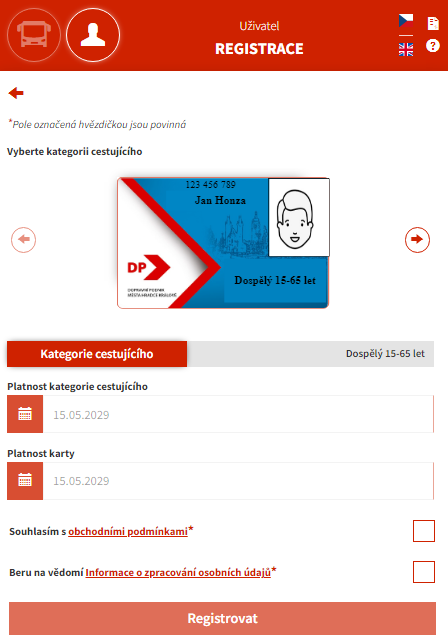
  • on the following screen to confirm your agreement to terms and conditions and you will get to know processing of personal data and press the button Register
  • After pressing the button, an email is sent to your mailbox with a link, which you must use to confirm the ownership of the email address to activate your account.
The passenger selects the appropriate category (e.g., Adult 15-65 years) and confirms agreement with the terms and conditions and personal data processing.
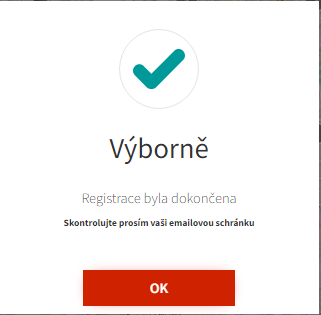
After submitting the registration form, a confirmation of registration completion will be displayed with a prompt to check your inbox.
  • press the button Confirm in the email that came to your address
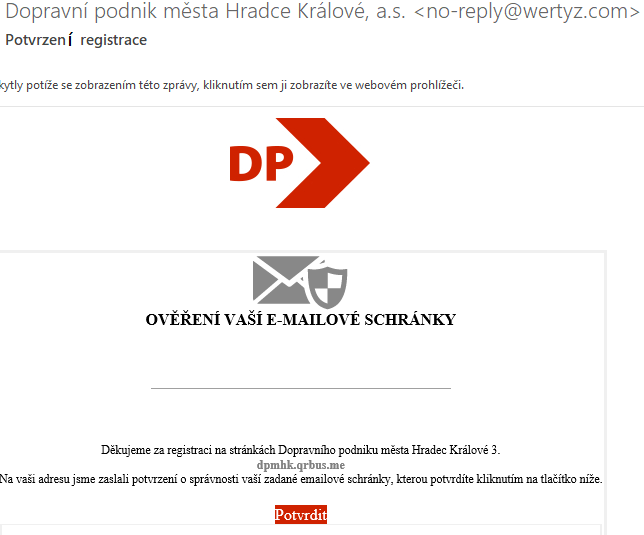
An email with the subject "Registration Confirmation" has been delivered to the inbox, where the user clicks the "Confirm" button to verify their email address.
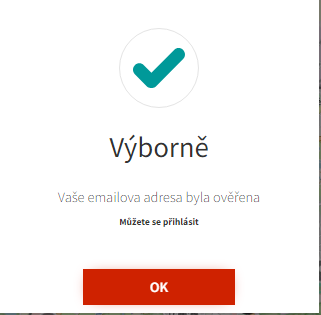
The website will then confirm that the email address has been successfully verified.
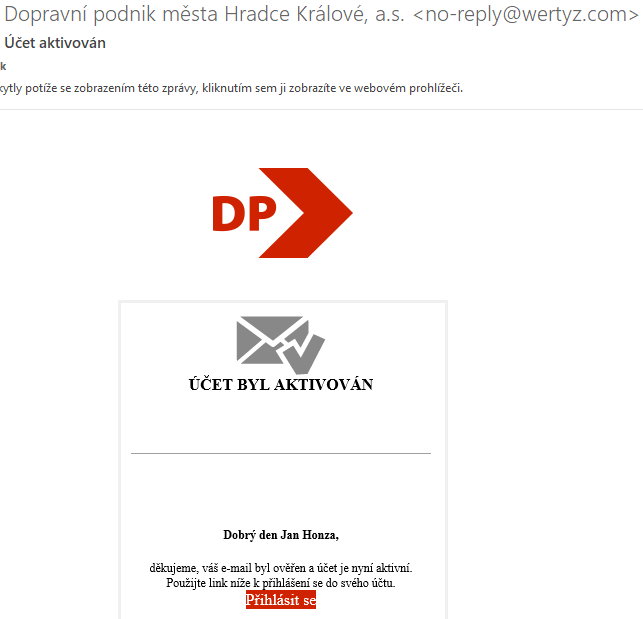
The final step is to send an email with the information "Account Activated." This email contains a "Log In" link that will redirect the user (e.g., Jane Doe) to their newly activated account.
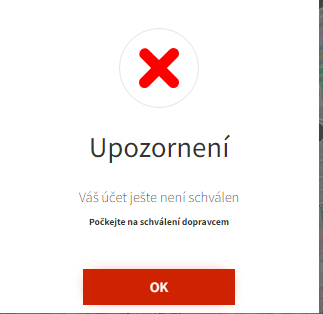
Screenshot of a pop-up warning window. The text reads: „Your account has not yet been approved. Please wait for carrier approval.“ The window closes with an „OK“ button.
  • The photo is then checked at the transport company's customer service centre and the account is approved or you are emailed and asked to upload a new photo.
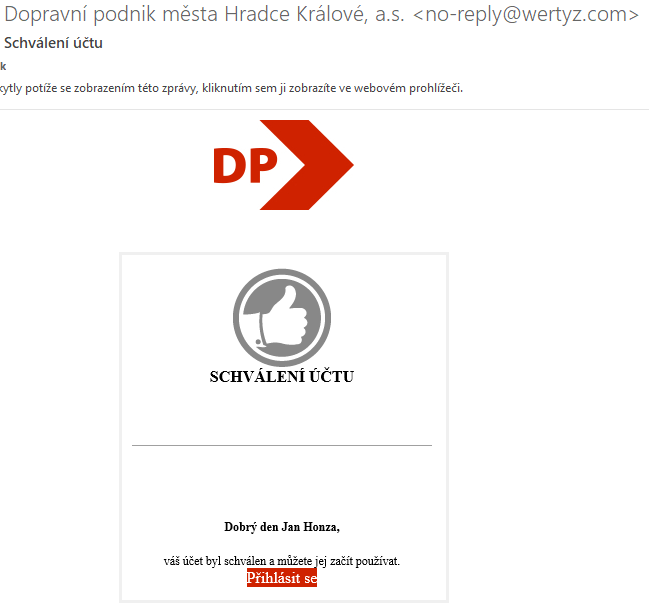
Screenshot of an email from the Public Transport Company with the subject „Account Approval.“ The message informs the user (Jan Honza) that their account has been approved and they can start using it via the „Log in“ link.
  • Log in to the new E-SHOP and check the accuracy of the transferred tickets and the credit you had on your City Card.
  • the wallet balance (credit) will be reduced by any rides on the day of registration that have not yet been transferred to the system at the time of registration.
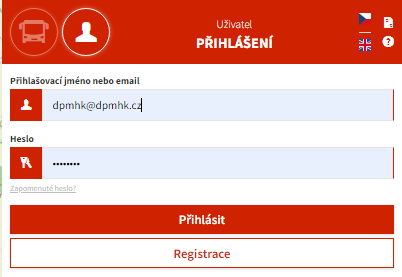
Screenshot of the e-shop login screen. The form includes fields for entering a username or email (example: dpmhk@dpmhk.cz) and password. Below the form are the „Login“ and „Registration“ buttons.
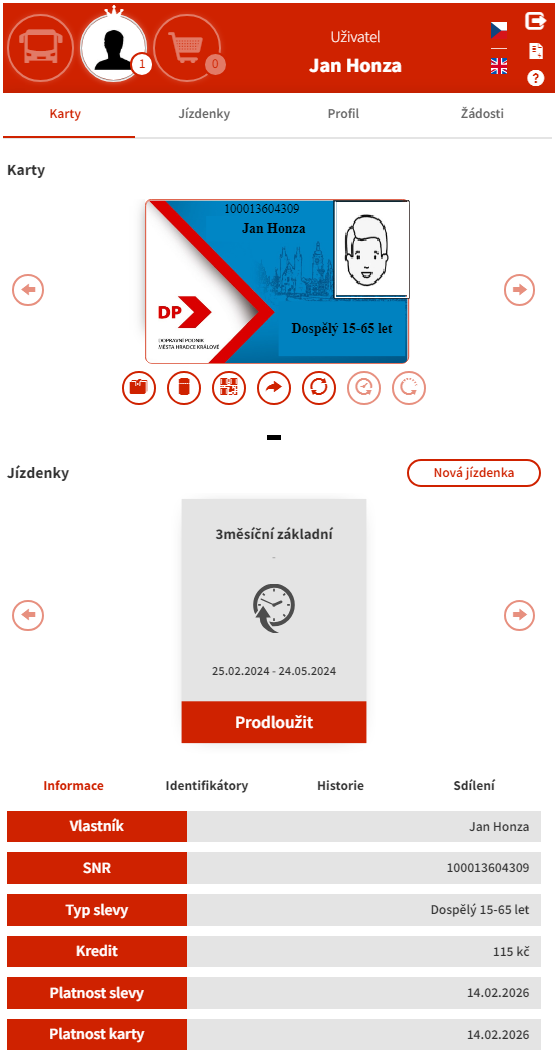
Screenshot of detailed information about user Jan Honza's city card. The table displays the card's SNR, discount type, current credit balance (115 CZK), and the validity dates of the discount and the card itself.

Existing customer with a portable City Card

Card without your photo

Follow the same procedure as for the first card (city card with photo).

After registering, go to the counter at the Public Transport Terminal or DP in Pouchovská Street to assign the City Card as an identifier. 

WARNING: When a portable card is added as an identifier, it loses its portability capabilities. The card is then used only for the registered user.

If the customer wants to continue to use the portable card across multiple people, DOES NOT REGISTER! However, they must keep the card topped up ONLY AT CUSTOMER LOCATIONS

New customer registration

There are two ways to access registration in a web browser:

  • Via the button Client zone in the main menu of the site by selecting Access to the client area
  • In a web browser by entering the URL address: https://dpmhk.qrbus.me/

When you start from your mobile phone you will be redirected to the mobile version.

Screenshot of the dpmhk.qrbus.me website - Client Zone (e-shop), at the top is a red bar with the DP logo and the text DPMHK, below it is a map, and in the bottom right corner below the map, a button labeled "Profile" is circled in red.

Mandatory data are marked with an asterisk and on the right with a red stripe.

  • enter your email and press the button Further
In the first step of a new registration, the user enters their email address (e.g., dpmhk@dpmhk.cz).
  • select the item New registration
The user starts on the main page, where they select the Profile section. Subsequently, they choose whether they want to perform a New registration or if they already have an existing city card.
  • insert your current photo (use the mouse wheel to adjust the size of the photo), fill in the required data and confirm with the button Further
The form requires filling in first name, last name, password, date of birth, and phone number. It is also possible to upload a user photo.
  • on the following screen, select the type of discount and insert the required documents (the inserted documents are only used to check eligibility for discounts and verify identity and account approval are automatically deleted)
  • you confirm your agreement to terms and conditions and you will get to know processing of personal data and press the button Register
  • After pressing the button, an email is sent to your mailbox with a link, which you must use to confirm the ownership of the email address to activate your account.
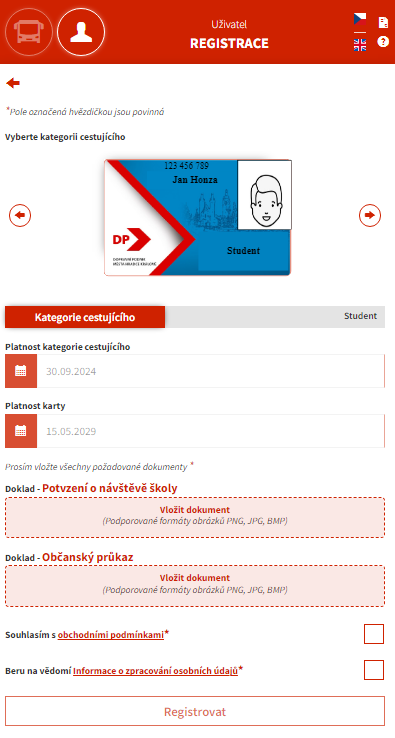
Screenshot of the registration form for the „Student“ traveler category. The user must set the validity of the category and card and upload the required documents: „Proof of School Attendance“ and „ID Card“.
After submitting the registration form, a confirmation of registration completion will be displayed with a prompt to check your inbox.
  • press the button Confirm in the email that came to your address
An email with the subject "Registration Confirmation" has been delivered to the inbox, where the user clicks the "Confirm" button to verify their email address.
The website will then confirm that the email address has been successfully verified.
The final step is to send an email with the information "Account Activated." This email contains a "Log In" link that will redirect the user (e.g., Jane Doe) to their newly activated account.
Screenshot of a pop-up warning window. The text reads: „Your account has not yet been approved. Please wait for carrier approval.“ The window closes with an „OK“ button.
  • then the photo and documents are checked at the transport company's customer service centre and the account is approved or you are asked to insert a new photo or document by email.
Screenshot of an email from the Public Transport Company with the subject „Account Approval.“ The message informs the user (Jan Honza) that their account has been approved and they can start using it via the „Log in“ link.
  • login to the new E-SHOP and insert your IDENTIFIER, which will be linked to your card
Screenshot of the e-shop login screen. The form includes fields for entering a username or email (example: dpmhk@dpmhk.cz) and password. Below the form are the „Login“ and „Registration“ buttons.

Traffic information

Eshop is also an app with traffic information

  • real departures of connections
  • stop timetables


Below is a video that will introduce you to these features.

Increasing credit and buying a time ticket

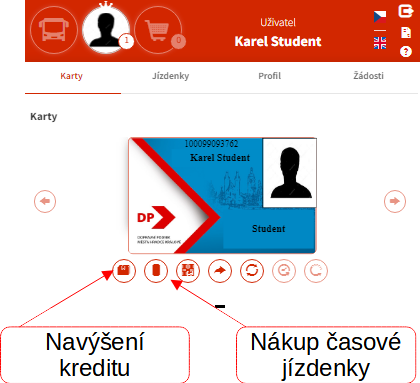
To purchase a credit or time ticket, use the first two icons below the card.

Screenshot of the interface with highlighted icons for purchase. Arrows point to the wallet icon for „Top Up Credit“ and the vending machine icon for „Purchase Timed Ticket.“.

1. credit increase

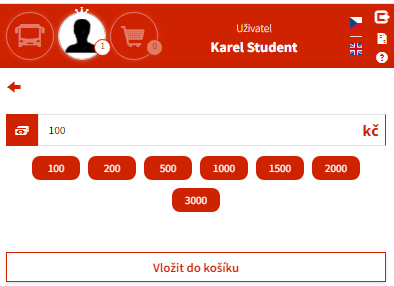
  • click on the credit increase icon and select the amount and click on the „add to cart“ button to add the request to the shopping cart“
Screenshot of the screen for increasing credit for user Karel Student. The interface offers predefined buttons with amounts from 100 CZK to 3000 CZK and a field for manual amount entry before adding to the cart.

2. purchase a time ticket

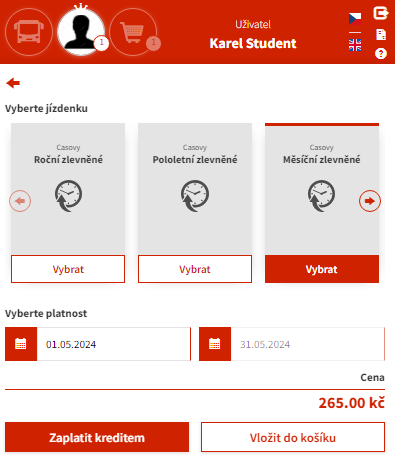
  • click on the time ticket purchase icon and select the type and validity date of the selected ticket. You can pay with credit on your card or use the „add to cart“ button to add the request to your shopping cart.“
Screenshot of the time ticket offer for the Karel Student profile. The user chooses between Annual, Semester, or Monthly discounted tickets and sets the desired validity date.

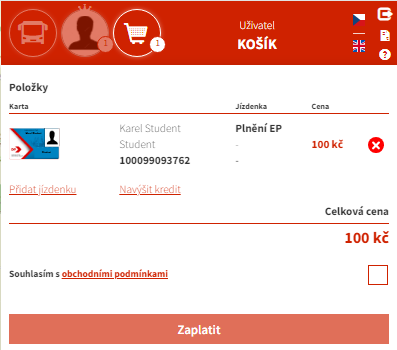
Finally, click on the icon shopping cart and check the acceptance of the terms and conditions and using the pay button you will be redirected to payment gateway where you can pay for the selected items.

Screenshot of the order summary in the cart. It displays the „EP Fulfillment“ (electronic wallet) item for the Karlo Student card for 100 CZK. To complete the purchase, you need to agree to the terms and conditions and click the „Pay“ button.

Frequently Asked Questions

Where specific prices are mentioned in the text, these are the prices in force at the time of implementation of the system. The current prices in force can be found in our current price list.
What are the benefits of the new check-in method for passengers?
  • No new card is needed.
  • Passengers can use a contactless bank card they already have or a mobile phone.
  • After registering in the client zone, you can use the QR code check-in when you start on your mobile phone (option to display QR code).
  • In case of loss or theft, it is possible to remove the original identifier and assign a new one, see below.

The physical device you will use at check-in that will be linked to your virtual card. The identifier can be the following physical means:

  • QR code in client zone  (option show identifier)
  • physical bank card - its TOKEN can be assigned in the shop or store using tokenization

  • bank card in your mobile or watch - its TOKEN can only be assigned at the store using tokenization

  • public transport chip card or chip tag

  • original City Card (automatically assigned to the virtual card when registering it on the new e-shop, see. Customer registration with an existing City Card or our shop

  • IREDO card

    • existing personified or anonymous - can only be assigned to our stores
  • TOKEN (payment card identifier) is a unique number calculated using cryptographic methods from the payment card data. This process is called TOKENIZATION. The original card data cannot be derived from the TOKEN value in any way. The TOKENIZATION process takes place either on the e-shop in the bank tokenization gateway environment or on bank-supplied readers at our stores and in the cars. Tokenization Gateway a bank readers meeting the security standards for bank card payments according to PCI DSS standard and are fully controlled by the bank and the transport company does not have access to your bank card numbers. Only these TOKENs are used in the entire check-in system of the transport company.


  • At tokenisation on the shop you will be redirected to the secure environment of the bank's tokenization gateway, where your payment card will be tokenized. During the tokenisation process, the card number and expiry date are encrypted into an encrypted number called TOKEN. This cannot be used for payment and the original data cannot be derived in any way. This TOKEN is then assigned as an identifier to the virtual card. The bank card system is secured with technology at the level of PCI DSS banking standards. Eshop and the entire system works only with these TOKENs. No one other than the bank's certified tokenization gateway has access to the payment data (card number, validity and control code).


  • Tokenisation in our stores is done by simply attaching the card to the bank reader, which will generate a TOKEN that will be assigned as an identifier to your virtual card.

How to assign a new identifier?

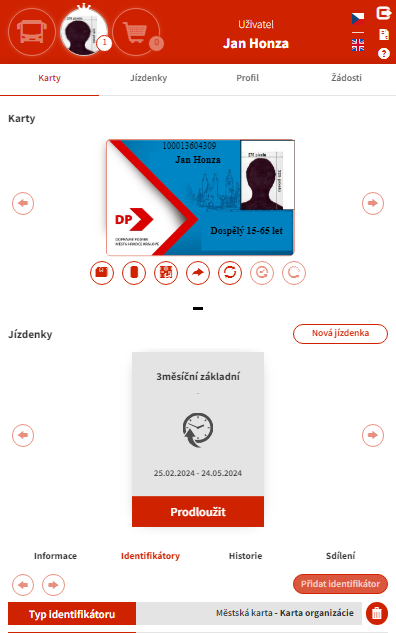
Log in to your account on the e-shop and go to the tab „Cards“ and at the bottom click on the „Identifiers“ and select „Add identifier

Screenshot of an e-shop user interface for logged-in user Jan Honza. The top bar displays the cart status and a language switcher. In the „Cards“ section, a virtual city card for the „Adult 15-65 years“ category is displayed with management control icons.
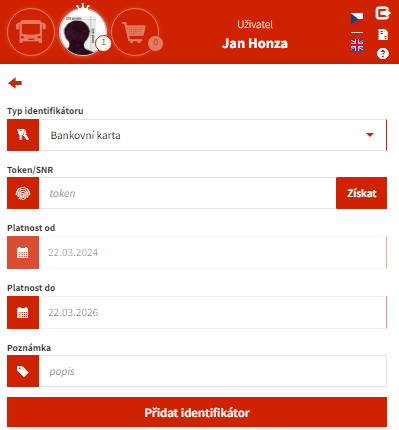
  • select the type of identifier
  • Bank card - by clicking „Get“ you will be redirected to the bank's secure environment where you will be able to obtain the TOKEN of your payment card by entering your card details.
    • only a physical bank card can be assigned in this way (other types of identifiers can only be assigned on our stores)
Screenshot of the e-shop "User Jan Honza" in the "Add identifier" section. "Bank card" is selected as the identifier type. It is necessary to obtain the "Token/SNR", set the card validity, and optionally add a note. The process is completed by clicking the "Add identifier" button.

Increasing credit and buying a time ticket

To purchase a credit or time ticket, use the first two icons below the card.

Screenshot of the interface with highlighted icons for purchase. Arrows point to the wallet icon for „Top Up Credit“ and the vending machine icon for „Purchase Timed Ticket.“.
1. credit increase
  • click on the credit increase icon and select the amount and click on the „add to cart“ button to add the request to the shopping cart“
Screenshot of the screen for increasing credit for user Karel Student. The interface offers predefined buttons with amounts from 100 CZK to 3000 CZK and a field for manual amount entry before adding to the cart.
2. purchase a time ticket
  • click on the time ticket purchase icon and select the type and validity date of the selected ticket. You can pay with credit on your card or use the „add to cart“ button to add the request to your shopping cart.“
Screenshot of the time ticket offer for the Karel Student profile. The user chooses between Annual, Semester, or Monthly discounted tickets and sets the desired validity date.

Finally, click on the icon shopping cart and check the acceptance of the terms and conditions and using the pay button you will be redirected to payment gateway where you can pay for the selected items.

Screenshot of the order summary in the cart. It displays the „EP Fulfillment“ (electronic wallet) item for the Karlo Student card for 100 CZK. To complete the purchase, you need to agree to the terms and conditions and click the „Pay“ button.

How to add a child account (for child, parent)

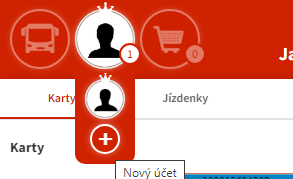
1. in your profile, click on the + icon 

Details of the expanded user menu in the e-shop. Under the main user icon, there is a button with a large plus sign and the label "New Account", which is used to add another profile (e.g., for a child).

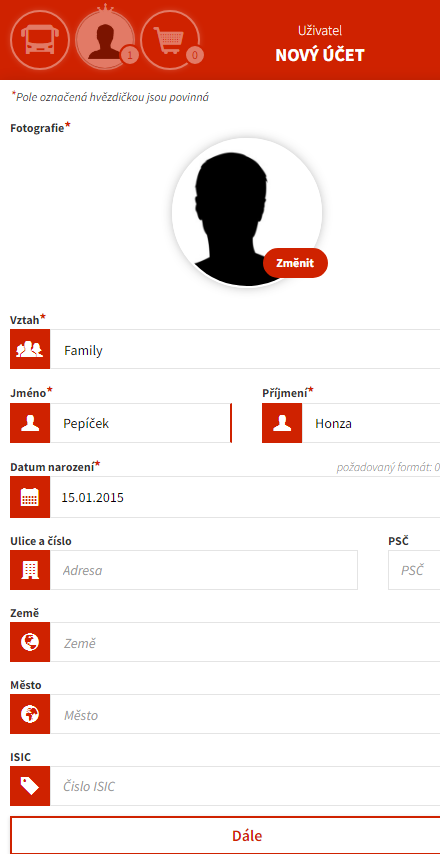
2. fill in the required information (photo, first name, last name and date of birth) and press Next

Screenshot of the first step of registration for the DP Hradec Králové e-shop. The form requires uploading a photo, filling in the first name, last name (Jan Honza), date of birth (15.01.2015), and permanent address. After filling it out, proceed by clicking the "Next" button.

3. If you have the original CITY CARD, insert the photo of the card as proof and press the register button. We will then perform the verification according to the existing CITY CARD and transfer all tickets and credit from this CITY CARD to this new account and set it as IDENTIFIER

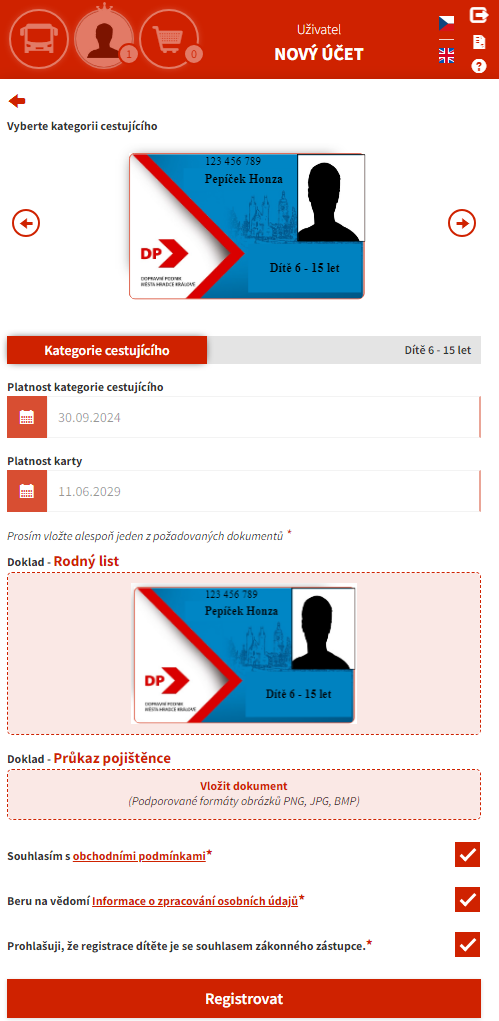
Screenshot of an e-shop during profile registration for "Child 6-15 years". The form shows a sample card, set discount validity, and requires uploading mandatory documents – Birth Certificate and Health Insurance Card. At the end, you need to check the consent boxes and click "Register".